

 Home
HomePage 5 of 5: Using Nero Burning ROM 6.x - Burning a DVD
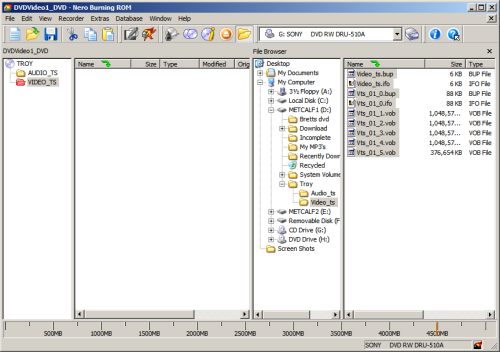
15. Right click on the RED "VIDEO_TS" folder, and then left click "Open". (You may right click either of the 2 RED "VIDEO_TS folders. As of right now, the "VIDEO_TS" folder is empty, so it will show nothing after you right click and click open.) (Screen Shot Below)
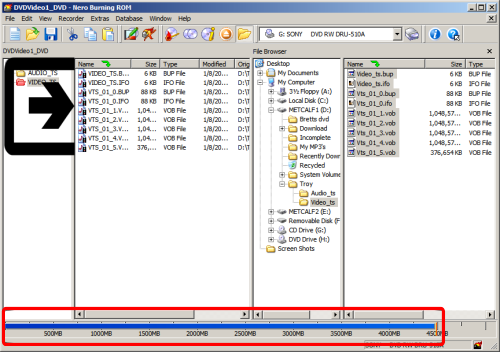
16. Now right click the RED "VIDEO_TS" folder on the far left side, under the disc Name(Label) and under the"AUDIO_TS" folder. And left click "Paste". The files should now appear in the RED "VIDEO_TS" folder. The capacity meter should also turn all blue and stop right before "4500MB". (Screen Shot Below)
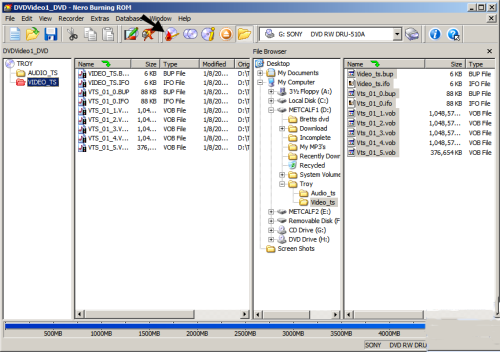
17. Now your ready to burn. Click the burn icon. (The 9th icon from the left on my version). (Screen Shot Below)
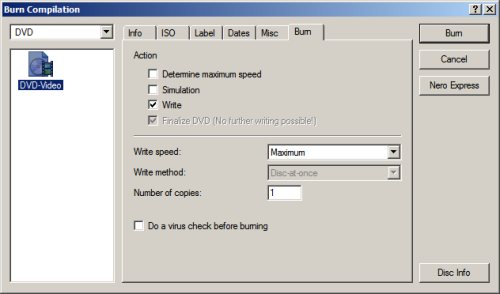
18. After click the "Burn" icon, the "Burn Compilation" window will pop up. This screen is the same screen as the "New Compilation" window, just with updated information regarding your Compilation. The only tab on the "Burn Compilation" screen I would mess with, is the last tab, which is the "Burn" tab. Now the settings you change here, are totally up to you. By no means do I suggest any different than my settings or the same as my settings. Find one that is comfortable to you, and stick with it. Click the burn button when you are ready to burn. (Screen Shot Below)
19, DONE!!! (Screen Shot Below)
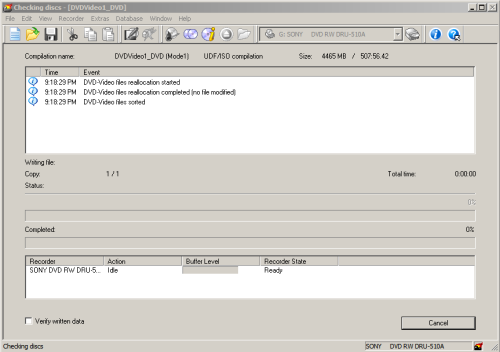
16. Now right click the RED "VIDEO_TS" folder on the far left side, under the disc Name(Label) and under the"AUDIO_TS" folder. And left click "Paste". The files should now appear in the RED "VIDEO_TS" folder. The capacity meter should also turn all blue and stop right before "4500MB". (Screen Shot Below)
17. Now your ready to burn. Click the burn icon. (The 9th icon from the left on my version). (Screen Shot Below)
18. After click the "Burn" icon, the "Burn Compilation" window will pop up. This screen is the same screen as the "New Compilation" window, just with updated information regarding your Compilation. The only tab on the "Burn Compilation" screen I would mess with, is the last tab, which is the "Burn" tab. Now the settings you change here, are totally up to you. By no means do I suggest any different than my settings or the same as my settings. Find one that is comfortable to you, and stick with it. Click the burn button when you are ready to burn. (Screen Shot Below)
19, DONE!!! (Screen Shot Below)

